
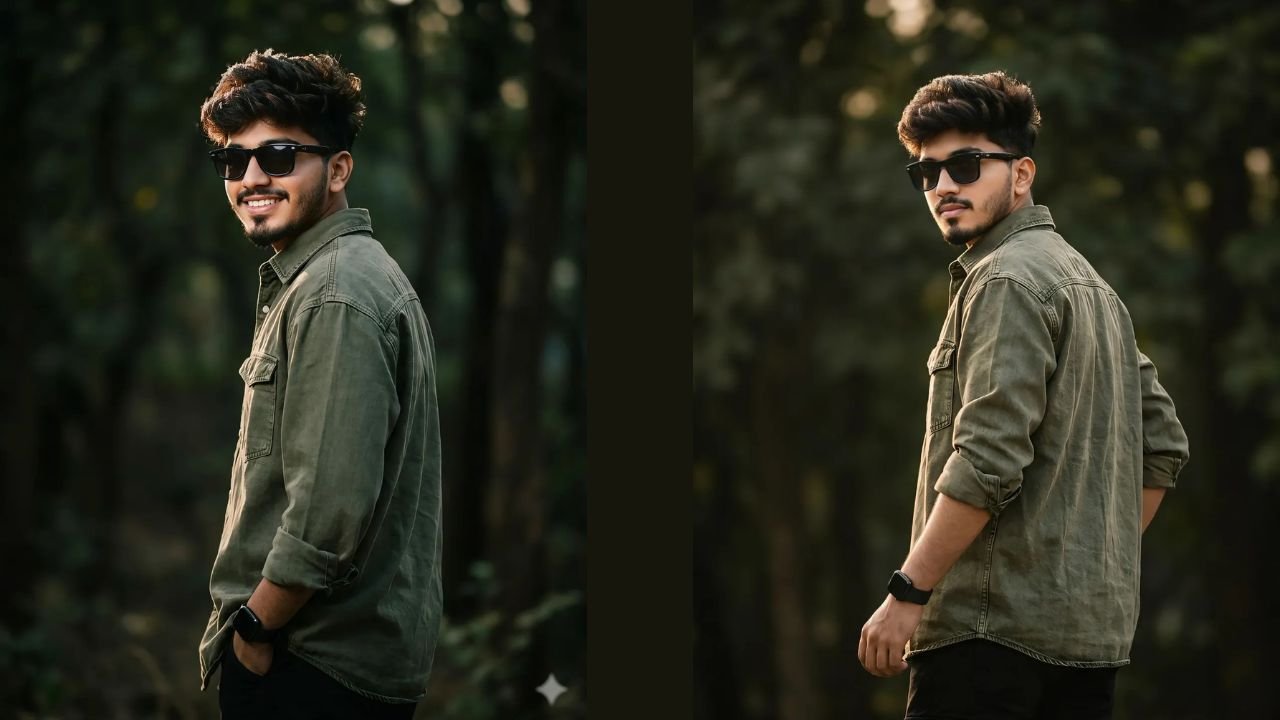
AI image generation has completely changed the way people create professional-looking portraits without a camera, a studio, or a photographer. One of the most popular AI tools right now for this kind of work is Google Gemini, and today we’re breaking down a viral cinematic portrait prompt that’s been trending across Instagram, Pinterest, and AI art communities.
If you’ve ever wanted a moody, DSLR-quality portrait with rim lighting, shallow depth of field, and a confident “editorial” vibe — this guide is for you.
Why Cinematic AI Portraits Are Trending
Cinematic portraits have exploded in popularity because they mimic high-end photography — the kind you’d normally pay a professional photographer hundreds of dollars for. With tools like Google Gemini, anyone can generate:
- Studio-quality lighting effects (rim light, deep shadows, HDR)
- Realistic skin texture and natural detail
- Depth of field similar to a real 85mm lens
- A moody, aesthetic background perfect for social media
This trend works especially well for profile pictures, Instagram reels covers, LinkedIn headshots (stylized), and personal branding content.
The Prompt That’s Going Viral (Two Versions)
This cinematic portrait style is actually circulating online in two slightly different versions of the same prompt. Both produce nearly identical results, so you can use whichever one you come across.
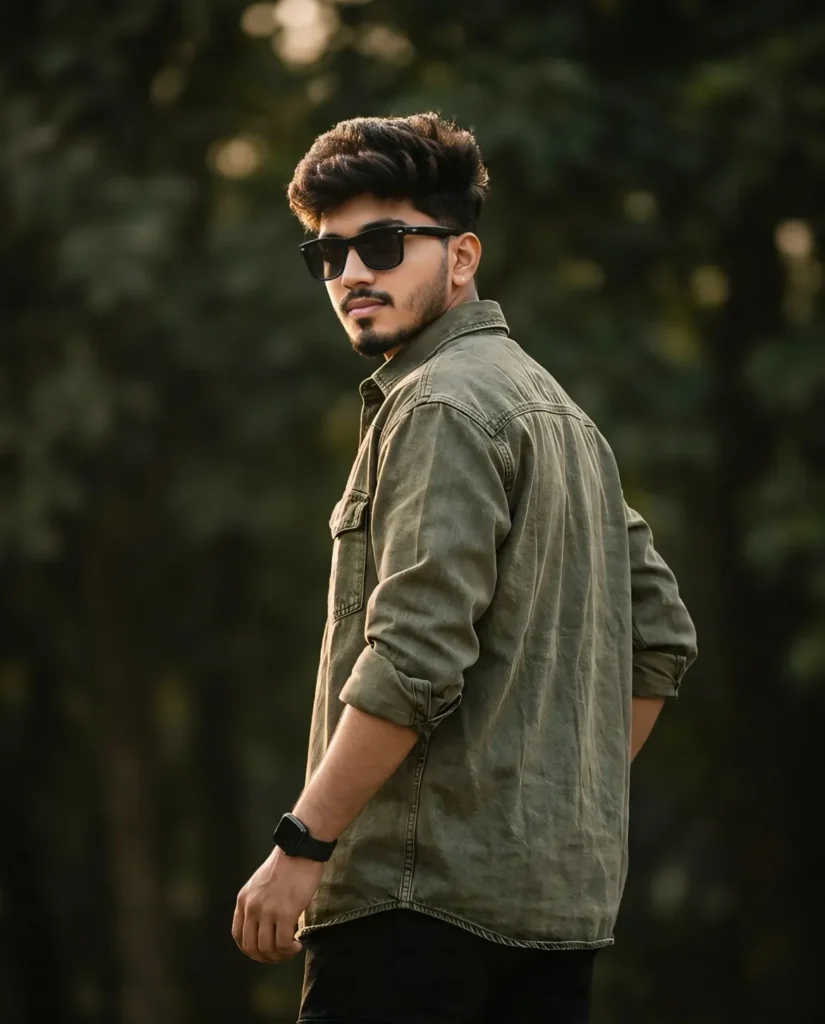
Version 1:
Ultra-realistic cinematic portrait of a young man
standing with back partially turned, looking over shoulder confidently,
messy textured hair, oversized olive denim shirt with rolled sleeves,
black sunglasses, smartwatch visible, dark blurred natural background,
strong rim lighting and deep shadows, HDR, 85mm lens, shallow depth of
field, photorealistic, DSLR quality, 4.5 aspect ratio
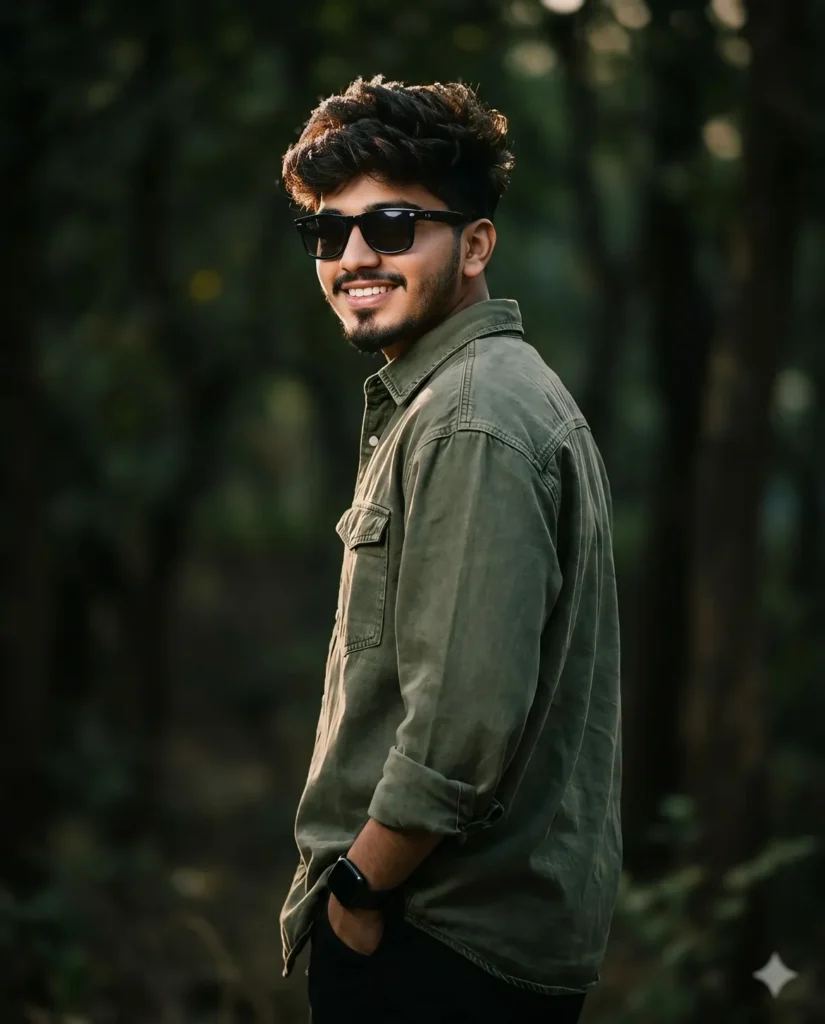
Version 2:
Ultra-realistic cinematic portrait of a young man standing
with back partially turned, looking over shoulder confidently, messy
textured hair, oversized olive denim shirt with rolled sleeves, black
sunglasses, smartwatch visible, dark blurred natural background, strong
rim lighting and deep shadows, HDR, 85mm lens, shallow depth of field,
photorealistic, DSLR quality, 4:5 aspect ratio.
What’s actually different between the two?
| Detail | Version 1 | Version 2 |
|---|---|---|
| Where “standing” appears | Start of second line | End of first line |
| Aspect ratio format | “4.5 aspect ratio” | “4:5 aspect ratio” |
| Line breaks | Split differently | Split differently |
| Final output | Same | Same |
The only detail worth paying attention to is the aspect ratio. Version 1 writes “4.5” while Version 2 writes “4:5” — the correct format is 4:5 (a ratio, meaning 4 units wide to 5 units tall), which is the standard portrait ratio used for Instagram posts. “4.5” is likely just a typo that crept in as this prompt got copy-pasted and shared around social media. If you’re typing this prompt yourself, always use 4:5 to make sure Gemini understands it as an aspect ratio instead of a random decimal number.
Aside from that one difference, both versions describe the exact same subject, pose, styling, and lighting — so functionally, they are the same prompt with two different levels of copy-paste care. Let’s break down why each part of this prompt works so well.
Breaking Down the Prompt (And Why It Works)
1. “Ultra-realistic cinematic portrait”
This sets the overall tone. Words like cinematic and ultra-realistic tell the AI model to avoid cartoonish or illustrative styles and instead aim for photo-level realism with dramatic lighting, similar to a movie still.
2. “Back partially turned, looking over shoulder confidently”
Pose descriptions matter a lot in AI prompting. This specific pose creates a natural, candid feel rather than a stiff, front-facing photo — which is exactly what makes portraits look professional instead of “AI-generated.”
3. “Messy textured hair”
Adding texture-specific words prevents the AI from generating overly smooth, plastic-looking hair — a common giveaway of low-quality AI images.
4. “Oversized olive denim shirt with rolled sleeves”
Clothing details anchor the outfit style. Oversized fits and rolled sleeves are currently trending in street-style and casual-editorial photography, making the output feel current and fashion-forward.
5. “Black sunglasses, smartwatch visible”
Small accessory details like these add realism and make the subject look like a real, styled individual rather than a generic AI face.
6. “Dark blurred natural background”
This keeps the focus entirely on the subject while giving the image a premium, editorial background blur — similar to what you’d get from a wide-aperture lens.
7. “Strong rim lighting and deep shadows, HDR”
This is the key phrase for that cinematic glow. Rim lighting creates a bright outline around the subject’s silhouette, while deep shadows add mood and drama — a signature look in fashion and portrait photography.
8. “85mm lens, shallow depth of field”
Referencing real camera specifications helps AI models simulate authentic photography physics — subject sharp, background soft.
9. “Photorealistic, DSLR quality”
These final tags reinforce the realism and push the model away from any stylized or artistic rendering.
10. “4:5 aspect ratio”
This ratio is optimized for Instagram posts and portrait-style social media content, making the output immediately usable without cropping.
Step-by-Step: How to Generate This Image in Google Gemini
- Open Google Gemini and select its image generation mode.
- Copy the full prompt above exactly as written.
- Paste it into the chat and submit.
- Wait for Gemini to generate the image (usually a few seconds).
- If the pose or lighting isn’t quite right, ask Gemini to regenerate or tweak specific parts (e.g., “make the lighting more dramatic” or “add more shadow on the left side”).
- Download the final image once you’re happy with the result.
Tips to Get Even Better Results
- Be specific about mood: Add words like “confident,” “moody,” or “editorial” to guide the emotional tone.
- Reference real photography terms: Camera lens sizes, lighting types, and depth of field terms consistently improve realism.
- Iterate, don’t settle: AI models respond well to follow-up refinement requests, so treat your first output as a draft.
- Match aspect ratio to platform: Use 4:5 for Instagram, 1:1 for profile pictures, and 16:9 for banners or YouTube thumbnails.
- Keep prompts structured: Notice how the viral prompt above follows a clear order — subject, pose, styling, background, lighting, camera specs. Following this structure makes your own custom prompts far more effective.
Final Thoughts
This cinematic portrait prompt works so well because it combines pose direction, styling detail, and real photography terminology into one structured request. Whether you’re building a personal brand, creating content for social media, or just experimenting with AI photography, this prompt is a great starting template you can customize with your own outfit, pose, and background ideas.
Try tweaking the clothing, background color, or lighting style to make it uniquely yours — and don’t be afraid to regenerate a few times to get that perfect cinematic shot.